
Documents v2
Generate documents from Medusa
Medusa documents is a plugin which provides you ability to generate various documents in PDF format. For supported documents, go to Supported documents
How to install?
- Install plugin by adding to your :
and execute install, e.g. .
- Add plugin to your with the licence key, which you received:
- Run migrations, e.g.
Getting started
After installation of a plugin, you will see new option on the sidebar named . This will lead you to such view:
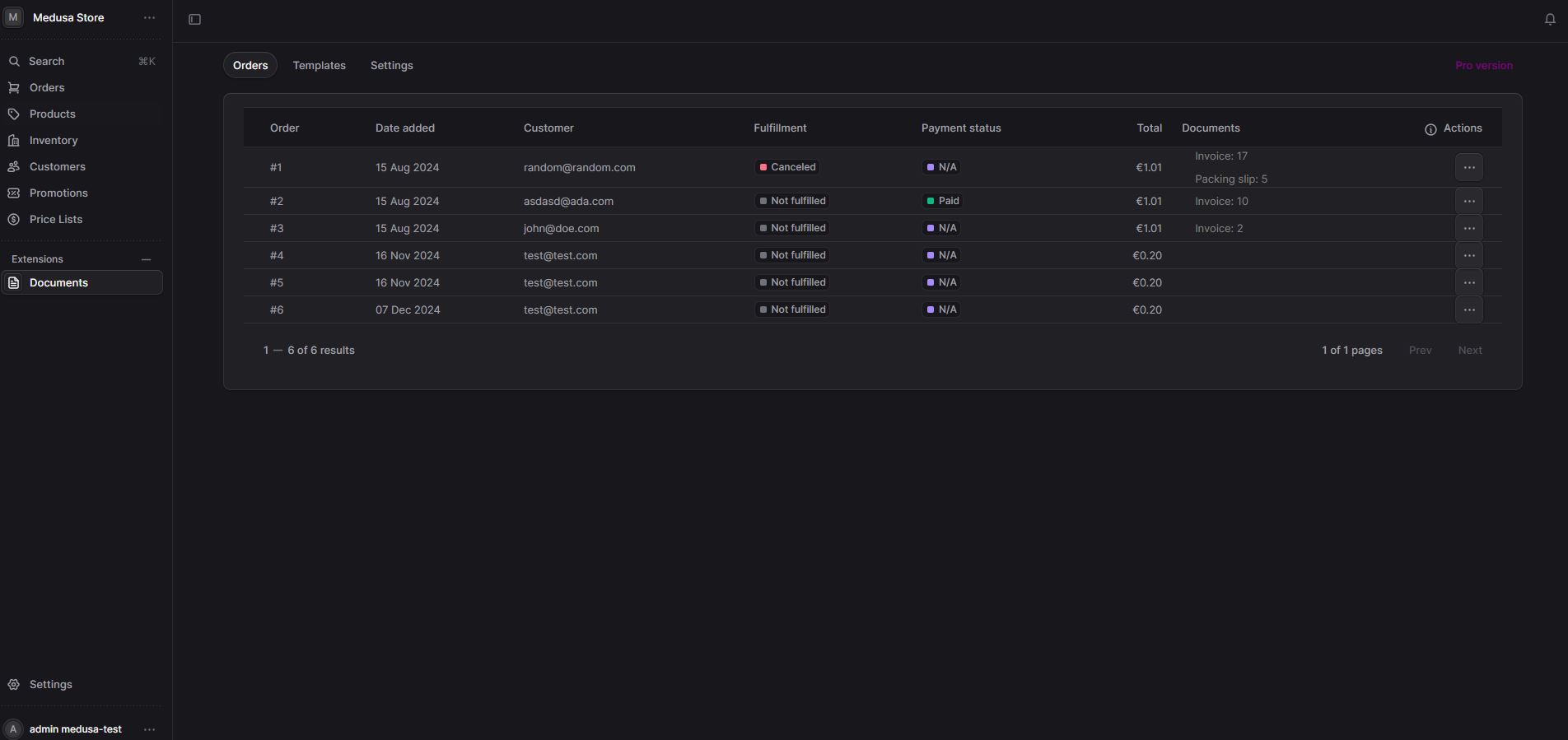
NOTE: This README describes as an example of document.
This is a view of your orders. You can notice that it is very similar to view. The important difference is in the last column, when you can see . can handle different documents.
Before you can generate you need to be familiar with two things - and . Let's go firstly to .
Settings
This tab contains settings which are used to generate documents. The most important setting which needs to be set is address. Address reflects information about your company or store, which will be inserted in documents. Go to to set it.
Depends on the used template, you may want to change a logo or adjust invoice number. Let's just jump now to .
Templates
This tab contains supported templates which are used to generate documents. You may see there very basic templates which will be extended in the future. If you set your correctly and you have at least one , you may see a preview how invoice will look like.
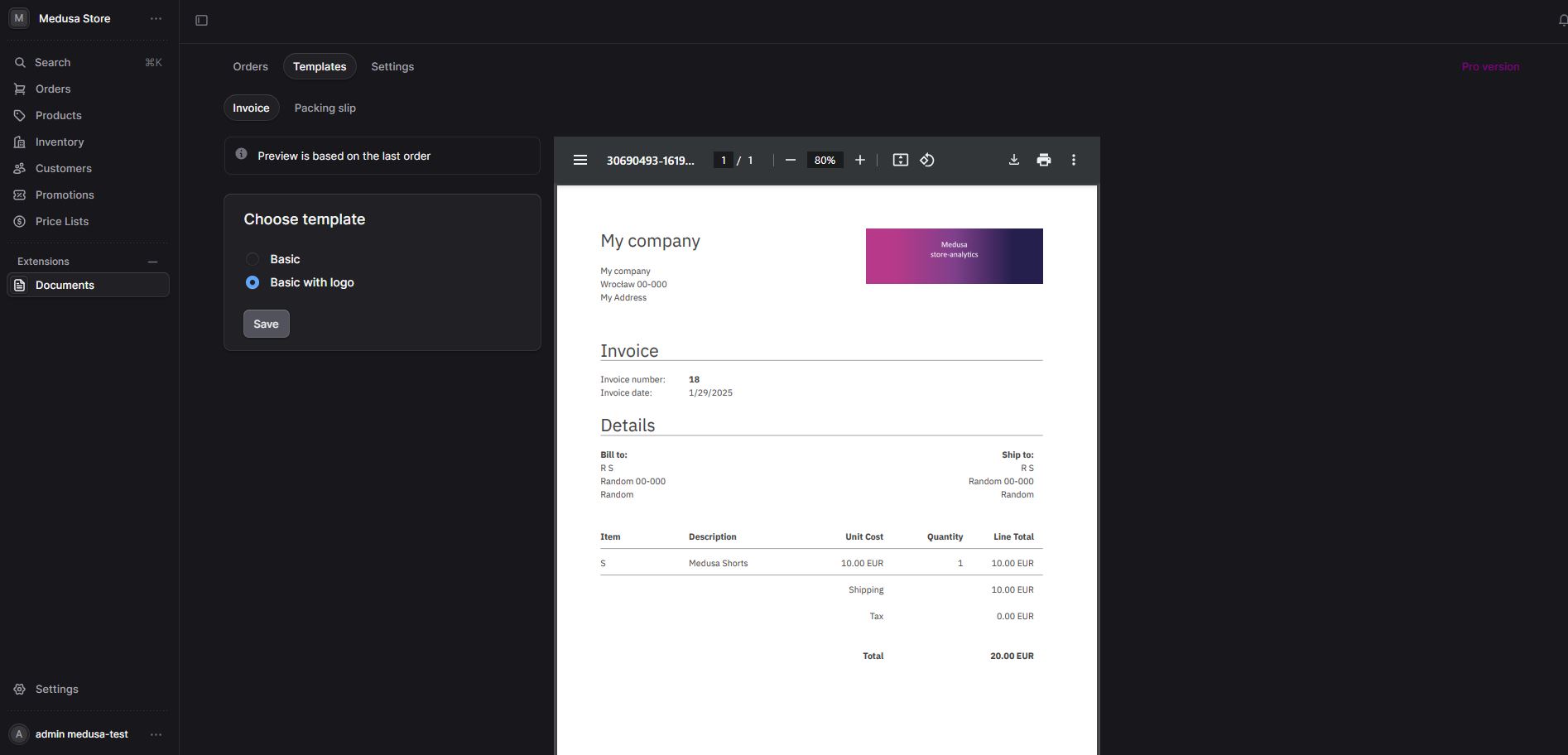
Note: In preview mode, invoice number is set to 1.
Note: If you have picture of template which you would like to have supported, please raise issue.
Supported documents
| Name | Status |
|---|---|
| Invoice | :white_check_mark: |
| Packing slip | :white_check_mark: |
Generating invoice
If you have your chosen and set, then you are able to generate invoice. Go to , click on and choose . You will see new card opened with your invoice.
Note: We do not store documents, see what it means
After invoice generation, you will see assigned number in the column . This is useful, if you want to download your invoice again or decide to generate new one.
View invoice
If you forgot download your invoice, you may click on document in column to see it again.
Invoice number
By default, invoice number is generated based on the last assigned invoice number. In other words - plugin takes the last generated invoice and takes its number to increment it.
We know that your businesss may require different numbering. In such case - go to tab and click in . You will see that you can change how your invoice number will look like. For instance, you can make something like . If your last invoice has base number , then you will get as your next invoice number.
Sometimes you may want to set your next invoice number (for instance when you have many different clients). You can do it by setting in . Please remember that this setting will be applied for newly generated invoice and the incrementation will start over from this new number.
Protip: After setting change, you can always go to to see a preview with your next invoice number.
Translation
You can now configure language for generated documents.
NOTE: We do not support translations of frontend.
You can configure language of documents using file. Here is the example of Polish language:
Available translations can be found here: https://github.com/RSC-Labs/medusa-documents/tree/main/v2/src/modules/documents/assets/i18n/locales.
How to add my own translations?
You have two options:
-
create under and create a pull requests - we will be more than happy to merge it
-
create only for local purposes. Then you need to go to and paste there your translation file.
Please remember that in needs to be equal to .
Q&A
What means "We do not store documents"?
It is simple - every time when you click we are taking an and based on that we generate invoice. The same happens with . It means that if you click generate invoice and your will change (e.g. line items changed, customer address changed etc.), then will show you the last state of your . We do not remember Order's state.
However, we remember such things like: invoice number, address or logo, so everything which you set in .
Anyway, we encourage you to save your invoice when you generate.
I clicked generate invoice, invoice number has been assigned, but I want to go back to previous number
Now you can do it! Just got to tab and click in . Use field to put your next invoice number.
Provided templates are not enough for me, I want more of them, I want customization, I want hide some information etc.
We also see here endless possibilities.. :) Unfortunately, this is a very basic version, but for sure in the future there will be more functionalities.
Proposals, bugs, improvements
If you have an idea, what could be the next highest priority functionality, do not hesistate raise issue here: Github issues
License
MIT
Pro version
The Pro version of medusa-documents expands on the features of the free version with more advanced capabilities such as:
- automatically send invoices to customers
- new premium templates
- additional options for configurations, e.g. setting different addresses for various document type
- and a lot more.
The Pro version is available under commercial licence - contact labs@rsoftcon.com for more information.
Hide Pro version tab
We show what advanced features we offer in "Pro version" tab. We try to keep it non-intruisive, but if you feel it differently, you can always hide this tab by setting following environment variable:
After restarting your admin application, you shall have this tab hidden.
© 2025 RSC https://rsoftcon.com/